
1Preparations before Use
Confirm the equipment list
- 1 mobile phone or tablet (supports Bluetooth, can install the Sigurd Fencing app)
- 1 left-side and 1 right-side scoring device
- Charging cable
- Armbands and connecting cables
Environmental usage recommendations
- Use indoors or in environments with relatively stable signals
- Avoid strong electromagnetic interference (high-power appliances, complex metal structures, etc.)
- Make sure the devices have enough battery and the phone’s Bluetooth is on
2Install and Launch the App
Install the Sigurd Fencing app
- Search for “Sigurd Fencing” in your app store, or install it using the download method provided by the manufacturer.
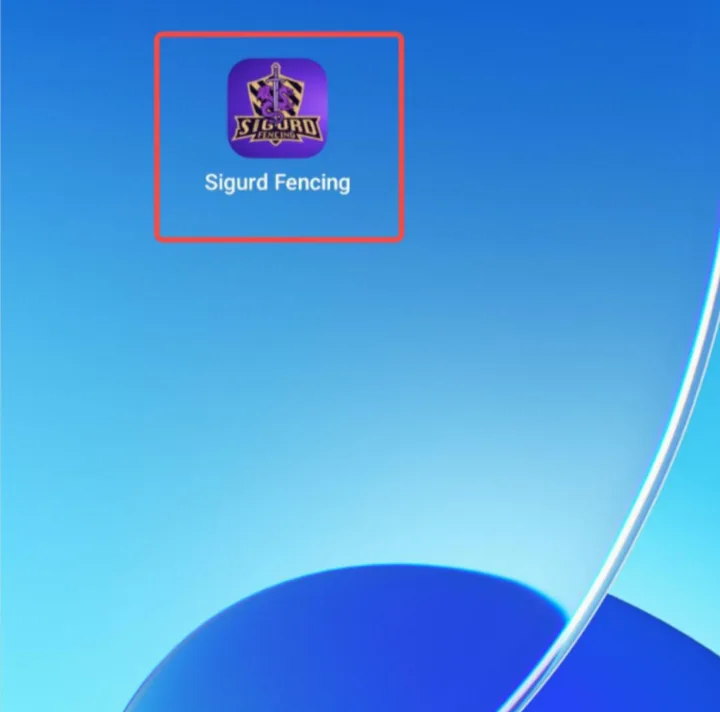
- Once installed, you will see the app icon on your phone’s home screen:
Launch the app
- Tap the Sigurd Fencing icon on your phone.
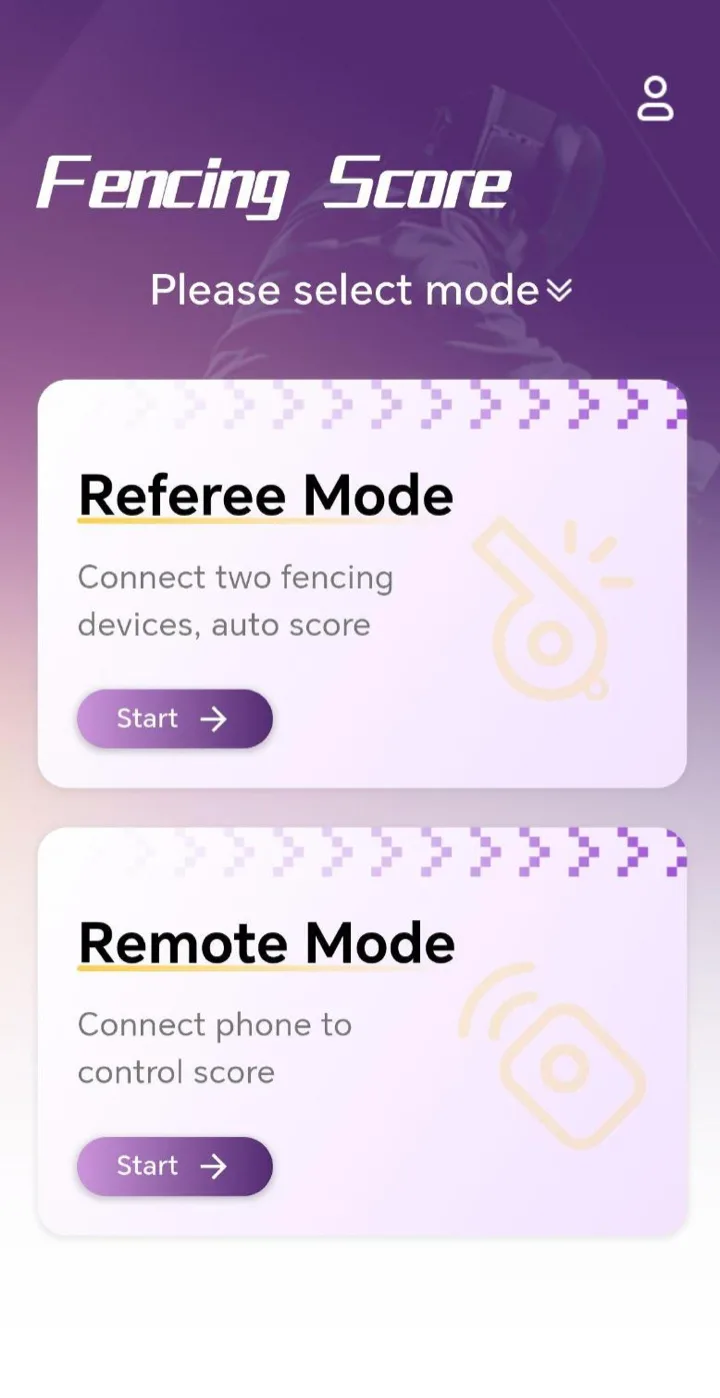
- Open the app’s home page. The overall interface looks like this:
3Mode Introduction and Switching
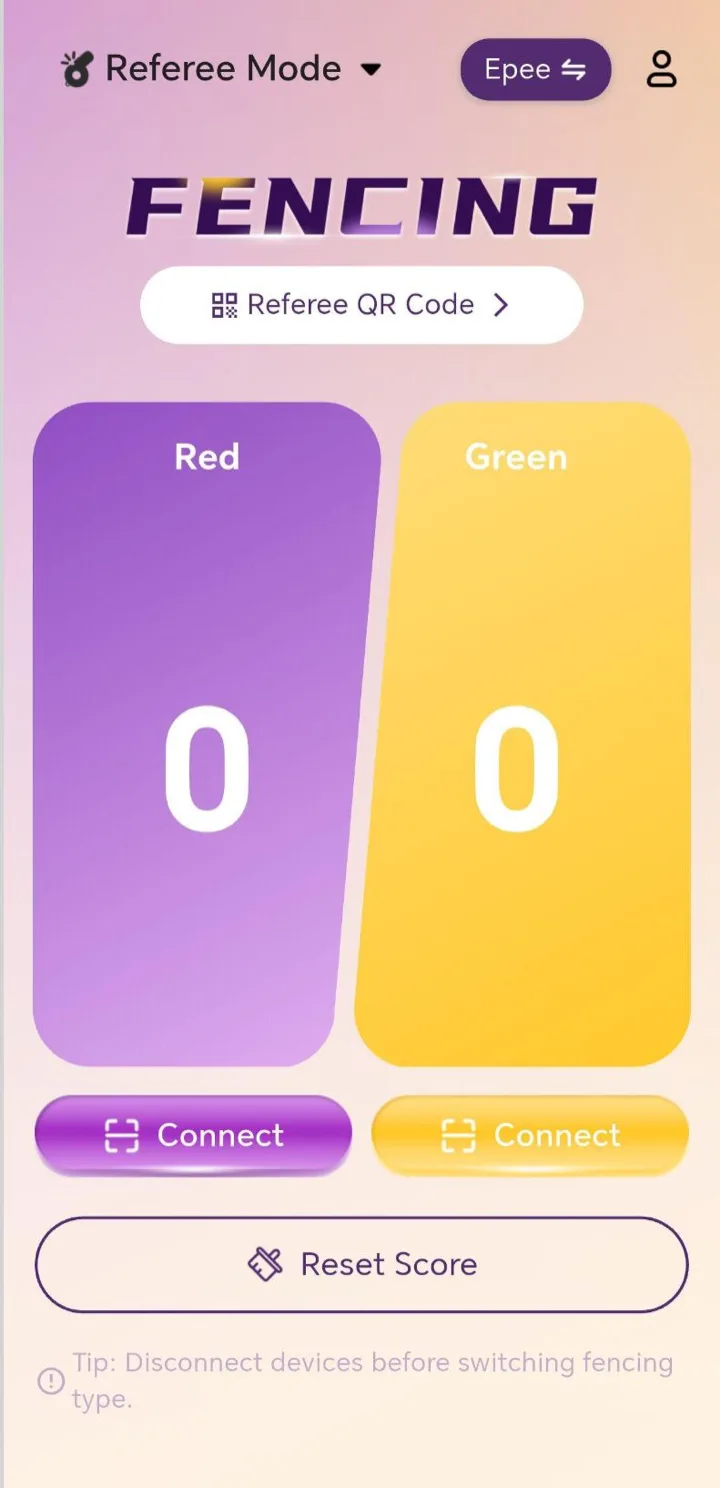
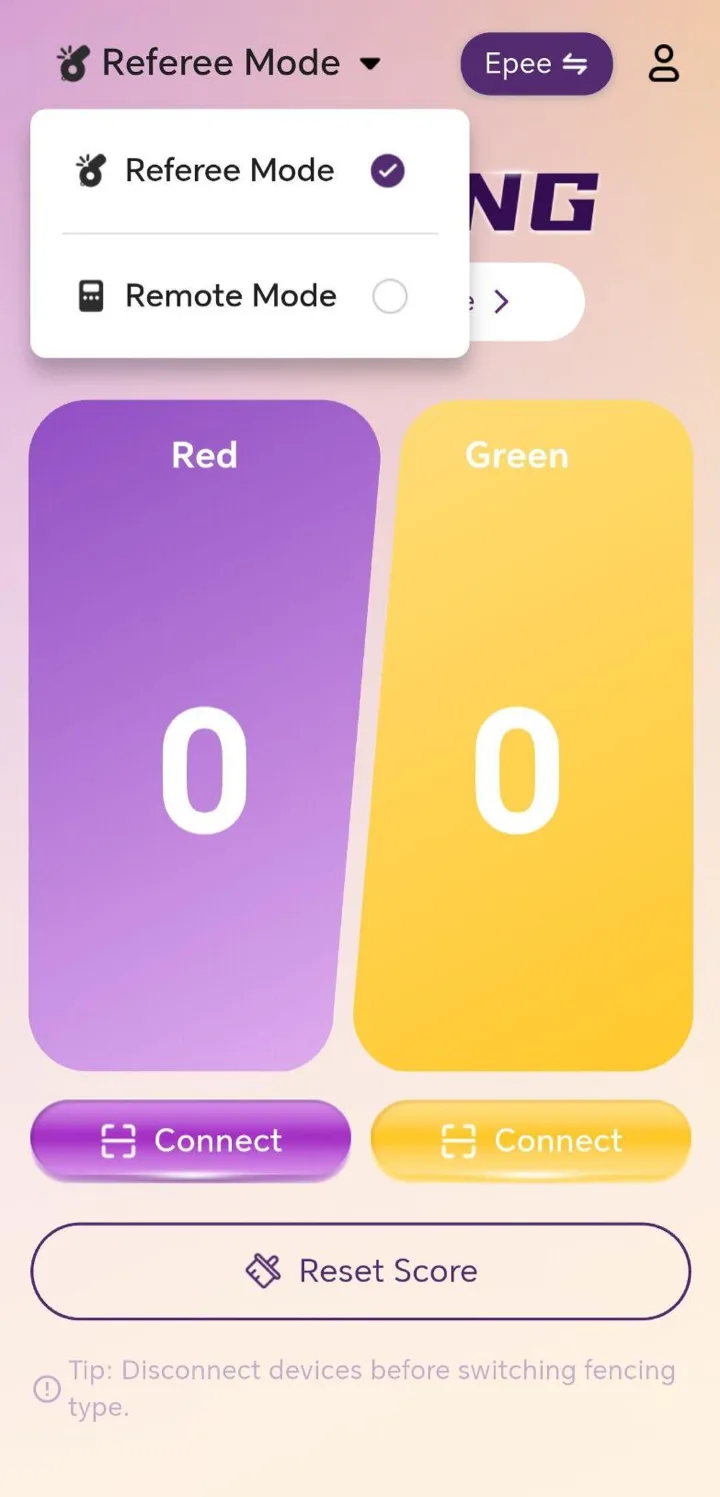
Referee Mode
After entering Referee Mode, you will see information such as both sides’ scores and the lighting/penalty area.
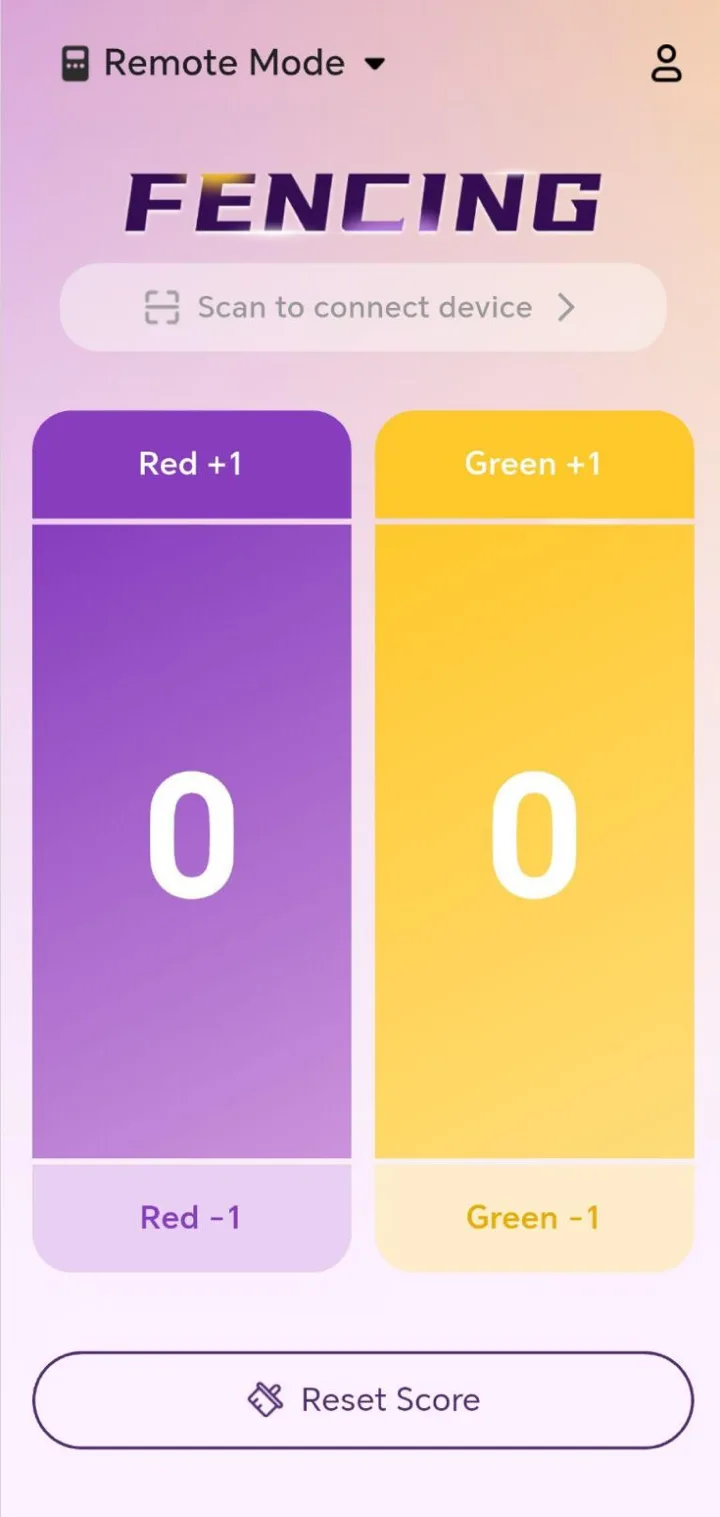
Remote Control Mode
Mainly used for:
- Manually adding/subtracting points for either side
- Manually clearing the score
- Acting as a remote control terminal, linked with Referee Mode
Mode Switch
- On the app home page, find the “Mode Switch” entry.
- After tapping it, you can switch between Referee Mode and Remote Control Mode.
4Select the Weapon Type (Épée / Foil / Sabre)
Penalty rules and wiring methods differ by weapon type, so be sure to select correctly in the app before use.
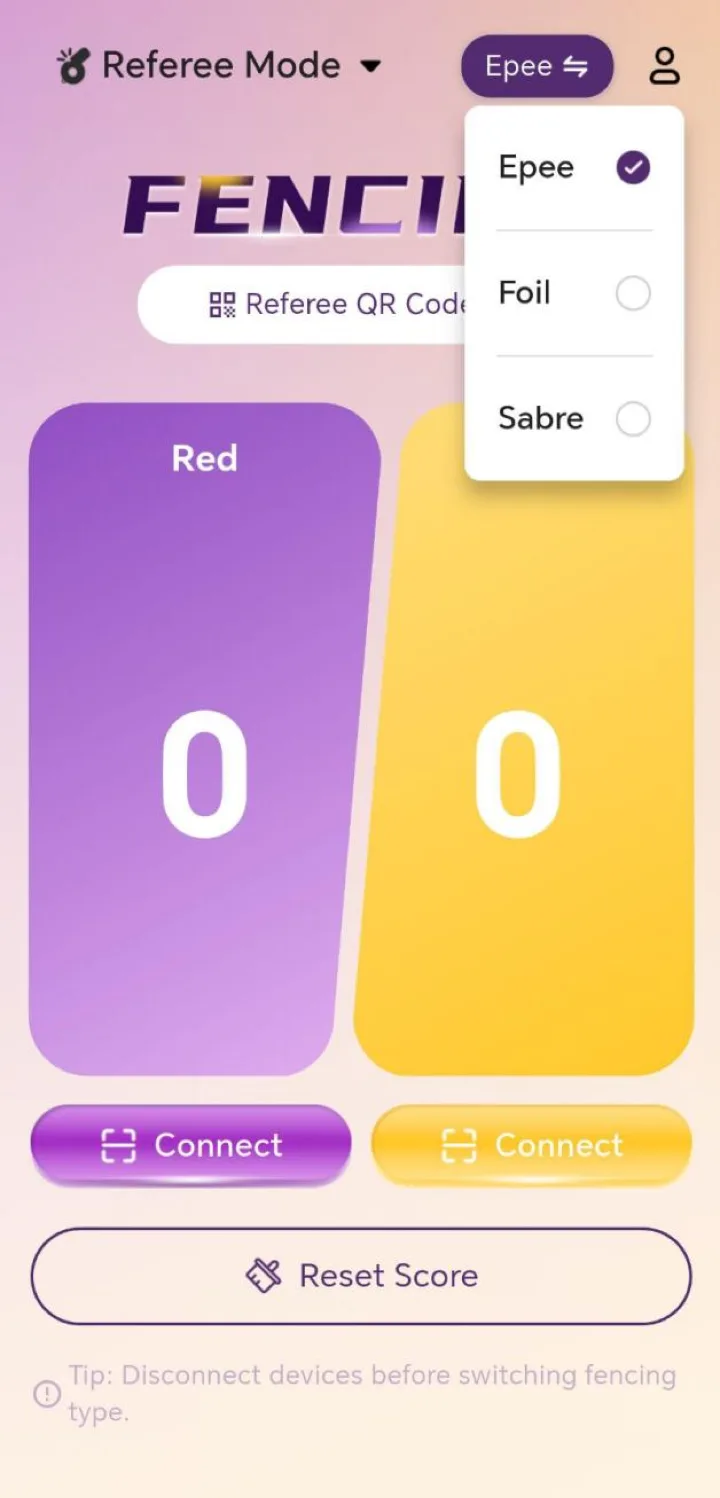
- Open the Sigurd Fencing app and enter Referee Mode.
- Find the “Weapon Type” option.
- Select the matching one from the list: Épée / Foil / Sabre.
Recommendation: Every time you change the weapon type (e.g. from épée to foil), reconfirm that the weapon type configured in the app matches.
5Connecting the Scoring Device to the App
The following uses “connect the left device first, then the right device” as an example.
Power on the scoring device
- Find the power button on the left side of the device body.
- Press the power button to turn it on, and check that the power indicator lights up.
Connect the app to the Red-side device
- Open the Sigurd Fencing app and enter the Referee Mode home page.
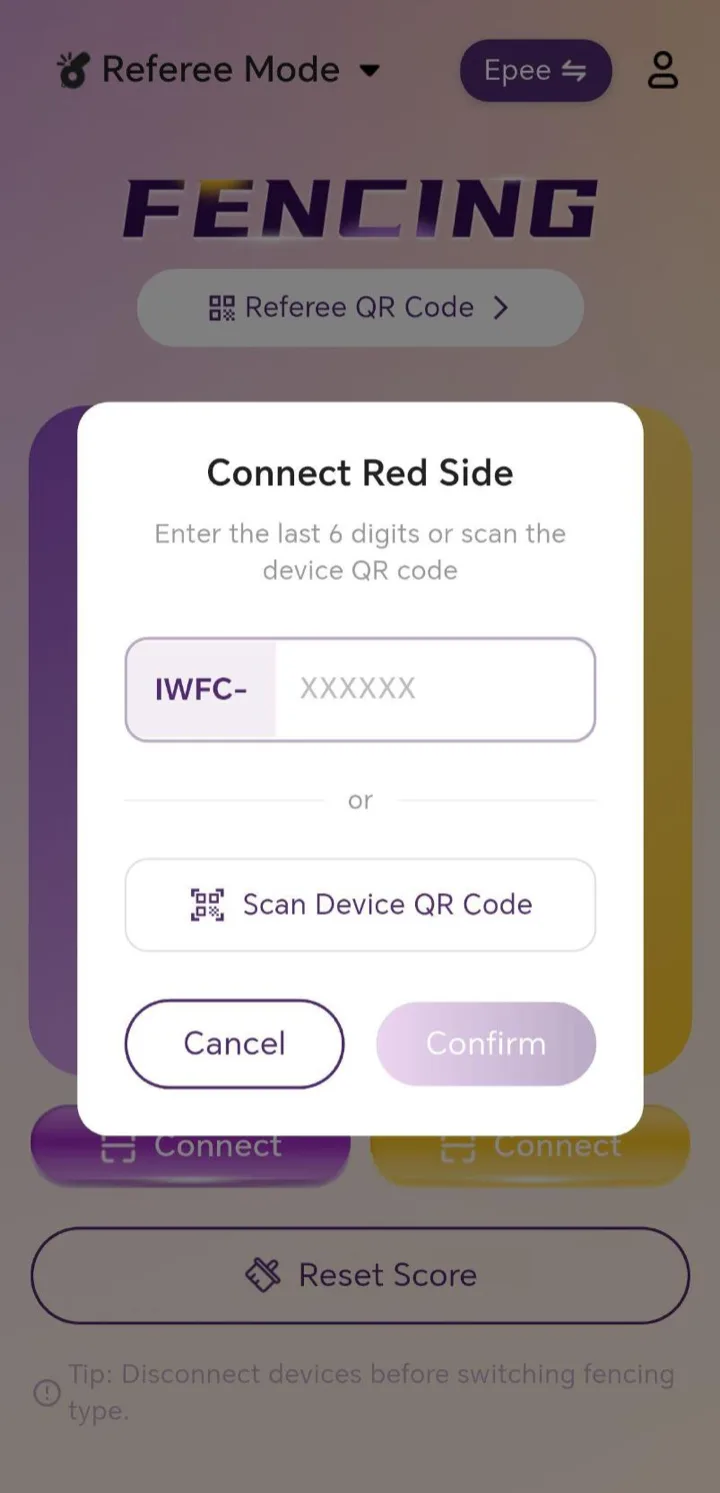
- Tap the “Connect Red-side device” button on the interface.
- In the pop-up, enter the last 6 digits of the device ID, or scan the device QR code.
- Tap Confirm and wait for the device to connect.
- Once connected, the Red-side device shows the connection is successful.
Note:
- Be sure to turn on the device’s power button before connecting.
- During search and connection, a “disconnect then reconnect” phenomenon may occur — this is normal.
- Please wait for the connection status to stabilize before the next step.
Connect the app to the Green-side device
Connect the Green-side device following the same procedure as the Red side. When both devices are connected, the app usually prompts “Device Ready”, indicating the system is ready.
6Operating Norms & Troubleshooting
To ensure fairness in training and competition and the best wireless detection experience, please read the following notes on device characteristics, operating norms, and common issues.
I. Device Characteristics & Technical Notes
Due to the inherent physical characteristics of wireless sensing technology, the following phenomena are within the current industry technical scope. Referees and athletes should be aware of them during use:
- Épée mode: the device may register a touch if the tip hits the floor (in non-conductive/non-metallic piste areas).
- Sabre mode: touches landing on the opponent’s unprotected bare skin (e.g. the palm) may trigger a scoring hit.
- Foil mode: a hit on the opponent’s guard (bell guard) area may be registered as a valid touch.
- Signal interference: when the two blades are in contact (e.g. during a parry or engagement) and simultaneously hit a non-valid surface (e.g. the arm), a point may occasionally be awarded.
II. Mandatory Operating Norms
Incorrect operation will directly lead to scoring-logic anomalies or signal instability.
| Category | Operating requirement | Consequence / impact |
|---|---|---|
| Protective equipment | A fencing glove must be worn; the sabre manchette (cuff) must be worn tightly on the upper arm. | Direct skin contact with the handle or a loose manchette causes resistance anomalies, leading to inaccurate scoring. |
| Prohibited contact | It is strictly forbidden for one person to hold both the Red and Green weapons at the same time. | This creates a short-circuit loop, causing the system’s judging logic to malfunction. |
| Device placement | It is strictly forbidden to place the scoring device (base station) directly on a metallic jacket (lamé). | Physical isolation must be maintained to prevent strong electromagnetic interference. |
| Conduct norms | [Foil] Athletes are strictly prohibited from touching their own blade to their own metallic jacket (lamé). | If the opponent hits the athlete during this contact, the system may fail to register the touch correctly. |
Note: Regarding high or unstable blade resistance in foil and épée, please ensure you use equipment that meets standard specifications. We will continue to optimise compatibility for abnormal resistance via OTA (over-the-air) firmware updates.
III. FAQ & Troubleshooting
Device fails to connect / frequently disconnects
- Confirm the scoring device has enough battery.
- Make sure the phone’s Bluetooth is on, and use it as close to the device as possible. Avoid environments with strong electromagnetic interference.
- If connection fails repeatedly, try: close and reopen the app; turn off the device power and restart after 5 seconds.
The app cannot find the device
- Confirm the device is powered on and not already connected to another phone.
- If there are several devices of the same model nearby, confirm the device number, or try connecting close to the target device.
Score or light display is abnormal (false / missed hits)
- Check that the weapon type selected in the app (épée/foil/sabre) matches the weapon actually used.
- Check the physical connections — body-cord and head-cord plugs to device/weapon are tight, the foil metal clip is attached to the lamé, the sabre armband is worn on the upper arm.
- If anomalies persist, record the device status and contact after-sales for further troubleshooting.
7Product Specifications
| Product name | Wireless Fencing Scoring Machine |
| Dimensions | 75 mm (L) × 65 mm (W) × 15 mm (H) |
| Power-on method | Button power-on |
| Control buttons | Power key × 1 |
| Status indicators | Power indicator, ID/score indicator, sync indicator |
| Battery capacity | 400 mAh / 3.7 V lithium battery |
| Input voltage / current | 5 V ⎓ 1 A |
| Charging interface | USB Type-C |
| Operating temperature | -20 °C to 70 °C |